

Ergonomic laptop stand for neck pain is a growing search for good reason: most remote professionals and grad students end up dealing with neck stiffness, upper-back aches, or even nagging shoulder problems after just a few hours at the computer. If you’re already feeling those twinges, you are not alone—and the way you use your laptop is likely a big part of the problem. In this guide, we go beyond pretty product photos to show, with real data and user complaints, exactly what features and setups make a genuine difference for your comfort and long-term health.
Key Takeaways
- New clinical data links laptop use and forward-head posture to a significant increase in neck, shoulder, and upper-back pain—proper setup is proven to make a difference.
- The best ergonomic laptop stand for neck pain must be highly adjustable, sturdy (preferably aluminum or steel), and paired with an external keyboard and mouse.
- Pay close attention to real-user complaints like wobble, insufficient height, and vent blockage when shopping—these problems can undermine every ergonomic benefit.
- Evidence linking laptop use to neck pain and posture-related injuries
- How to set up your laptop riser for real ergonomic relief
- Expert analysis: what goes wrong in real setups (and how to avoid it)
- Conclusion: Make your next hours at the laptop pain-free
- Frequently Asked Questions
Evidence linking laptop use to neck pain and posture-related injuries
Major studies in 2023–2024 confirm what many knowledge workers already suspect—prolonged laptop use significantly raises your risk of neck and upper-back pain. In a 2024 survey of university students, 59.6% reported neck pain, with shoulder and upper-back pain also affecting over half the sample. A 2023 cross-sectional study found that using a laptop with a “forward-head posture” (that is, craning to see the screen) more than doubled the odds of chronic cervical pain (odds ratio ≈ 2.04).
Why is this happening? When your laptop screen sits below eye level, you naturally lean your head forward and down. Even a small tilt matters: each inch your head moves forward adds about 10–12 pounds of extra strain to your neck muscles and ligaments. Over time, that load leads straight to pain, tension, and sometimes even numbness or tingling in the shoulders or upper back. DSE risk assessments and occupational health experts consistently flag long-term laptop use as a risk without proper corrective tools—especially ergonomic stands and external input devices.
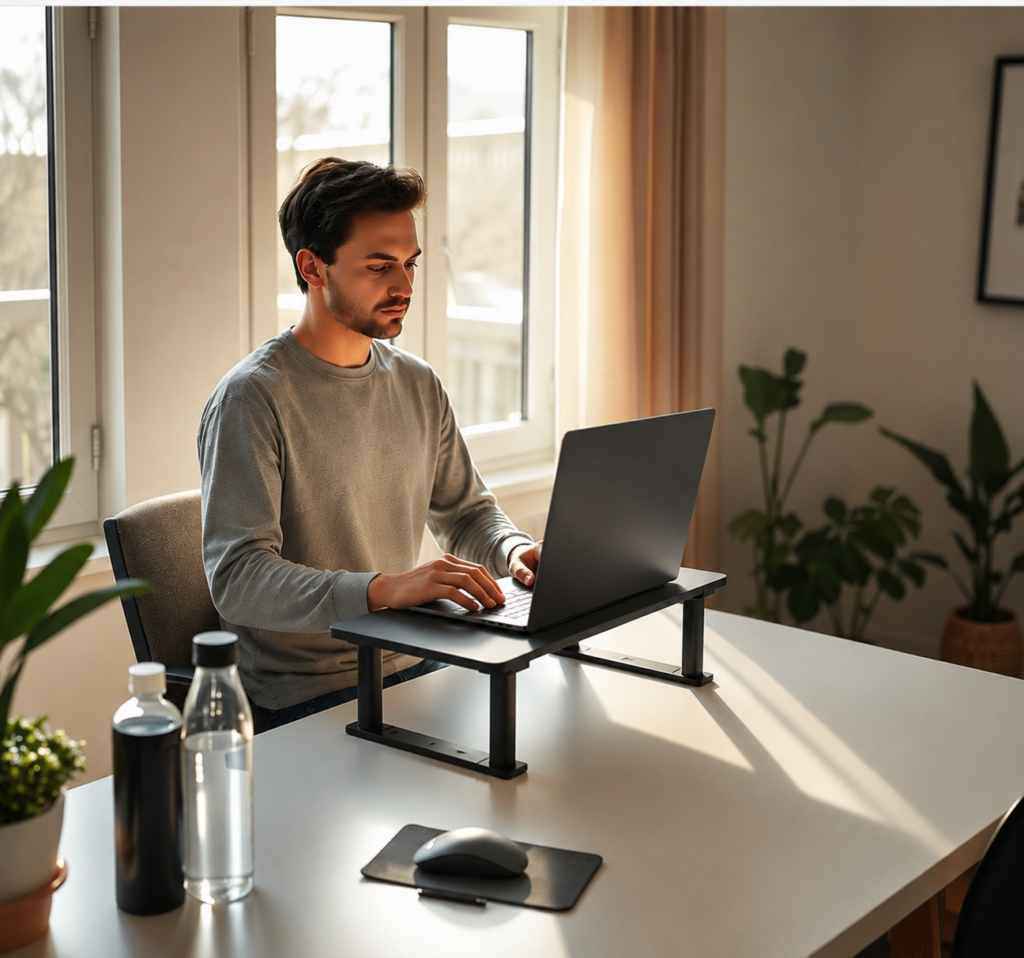
How to set up your laptop riser for real ergonomic relief
Bringing your laptop screen to eye level is only half the story. To actually reduce cervical muscle load—and feel less stiff by day’s end—you need the right ergonomic laptop stand for neck pain and a proper setup process. Here’s a clear checklist based on the latest clinical and ergonomic findings:
- Choose a riser with at least 6–12 inches of height adjustment: This range suits most average desks and user heights. Confirm that your chosen stand can get your laptop’s top bezel at or just below comfortable eye level.
- Adjust tilt to find a glare-free, neutral viewing angle: Tilting the tray slightly (10-20 degrees) can prevent wrist discomfort and help with screen readability.
- Add an external keyboard and mouse: Using your laptop keyboard while the device is elevated will force your wrists and shoulders into awkward positions. Only use the laptop keyboard for short bursts or travel; make an external set standard at your desk.
- Set up your seat and desk posture: Aim for elbows at 90 degrees, shoulders relaxed, and feet flat. Consider pairing this with an ergonomic office chair or a quality footrest for optimal positioning.
- Check your angles visually: When looking straight ahead, your eyes should land in the top third of your screen. Your neck should feel upright—not craned or tilted forward.
- Alternate sitting with standing, if possible: Try to spend 1–2 hours per day using a standing desk or converter to “reset” your posture and break the pattern of sitting slumped.
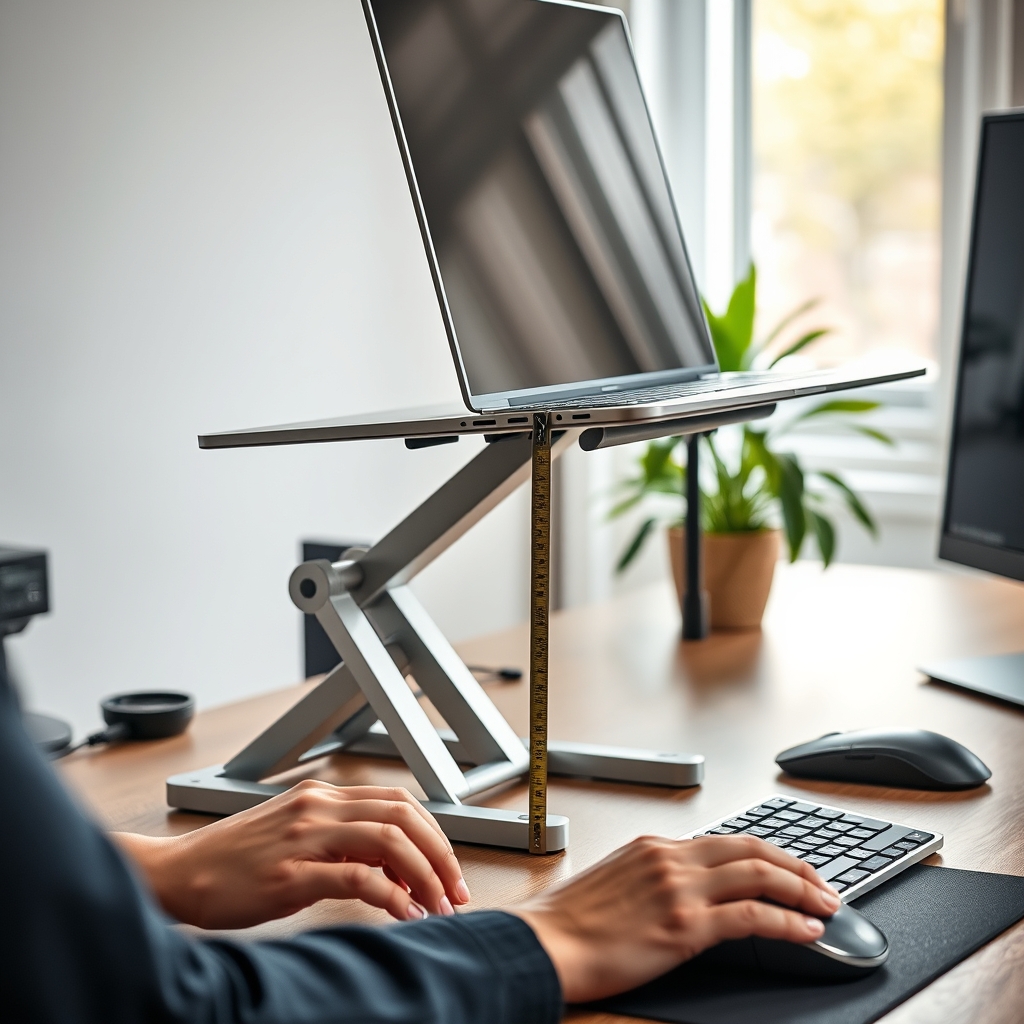
For a more advanced touch, some stands include integrated cable management and even mini keyboard trays—these help prevent clutter and keep your wrists level, further reducing strain. Always check ventilation: your riser should never block your laptop’s cooling vents (especially critical for 15–17″ models, which tend to overheat).
Initial setup usually takes 20–30 minutes, but the comfort boost can last every day. For a full ergonomic overhaul, consider a laptop stand buyer’s guide or review specialist guides on standing desk converters and footrests.
Expert analysis: what goes wrong in real setups (and how to avoid it)
Not all stands—or ergonomic attempts—are created equal. User reviews and product lab tests from 2023–2024 highlight several pitfalls with both design and day-to-day use:
- Wobble and instability: Lightweight plastic stands often flex or tip, especially under larger (15-inch-plus) laptops. This not only feels unsafe and distracting, but actually feeds muscle tension as you subconsciously compensate for the shake.
- Limited height adjustment: Many low-cost options only raise your screen 2–5 inches—nowhere near enough. This leaves most users still leaning forward or looking down.
- Cheap plastics and weak hinges: Poor materials can sag under weight, break unexpectedly, or fail to grip the table top. Wirecutter’s roundup and major retail reviews highlight these as leading causes of return and user disappointment.
- Vent blockage and heat buildup: Some risers inadvertently block cooling vents, causing thermal throttling or even crashes in heavy laptops. Always confirm compatibility and airflow before buying.
- Bulky footprint or portability issues: Heavier stands are more stable, but can crowd your desk or be awkward to carry. Portable (folding) stands may sacrifice stability—a clear ergonomic trade-off.
- Noisy or complex adjustment: Loud ratchets, sticky hinges, or intricate locking levers frustrate quick setup, making it less likely you’ll use the stand daily as intended.
Here’s a quick reality-check comparison based on real buyer data and expert recommendations:
| Feature | Expert Recommendation | Common User Complaint |
|---|---|---|
| Height Adjustment | 6–12 inches, infinite or multi-level | Screen still too low even at max height |
| Material & Stability | Sturdy aluminum or steel, wide base | Wobble, flex, breakage with plastic stands |
| Ventilation | Open base or mesh, no vent blocking | Laptop overheating on solid plates |
| Grip & Safety | Anti-slip pads/bumpers, secure tray lip | Laptop sliding, falls when typing |
| Portability | Depends on use—prioritize stability if desk-based | Too heavy for travel, too wobbly for main station |
| Adjustment Mechanism | Quiet, simple one-hand setup | Noisy, fiddly, or hard-to-use levers |
Still unsure how to tell which stand is worth your money? Use this proven checklist:
- Must-have: 6–12″ lift, sturdy metal construction, slip-resistant base, tilt, cable management, clear weight specs, and compatible with your laptop size/case.
- Nice-to-have: Built-in keyboard tray, fold-flat storage, accessory hooks, or modular design for hybrid workspaces.
- Red flags: All-plastic build, height under 5”, vent blockage, easily wobbles, unclear specs for load or adjustability.
For full workspace comfort, consider pairing your stand with an ergonomic keyboard or vertical mouse.

Conclusion: Make your next hours at the laptop pain-free
The numbers say it all: up to 59.6% of laptop users report neck pain and slouching just doubles the risk of chronic discomfort. But choosing the right ergonomic laptop stand for neck pain—and using it properly—has been proven in lab studies to cut cervical muscle load by about 30%. The path to lasting comfort is setting your workspace up with height, tilt, and input ergonomics in mind for every work session. Take 30 minutes today: measure, adjust, and make your setup work for you, not against you. Your neck will thank you for it. Ready to make your desk pain-free? Start with the buying checklist above—and invest in the right stand for a healthier, more productive tomorrow.
Frequently Asked Questions
Do ergonomic laptop stands really help with neck pain?
Yes. Multiple 2023 and 2024 studies show that a proper stand, combined with an external keyboard and mouse, significantly reduces the muscle strain and poor posture that cause neck and upper-back pain. Elevating your screen to eye level cuts cervical muscle load by up to 30%.
How high should I set my laptop stand?
The ideal is to have the top edge of your screen at or just below your relaxed eye level when sitting or standing. Most experts recommend a riser offering 6–12 inches of lift to cover common desk heights.
What are the most important features to look for?
Focus on adjustability (especially for height and angle), sturdy materials (aluminum or steel), non-slip base, open ventilation, and compatibility with your laptop size. Avoid stands that wobble, flex, or block vents.
Will using a laptop riser improve my posture long-term?
If you consistently use a riser with proper adjustments and pair it with an external keyboard and mouse, it can help maintain a healthier posture and reduce risk of chronic pain. Regular breaks and standing periods also make a big difference.
Can I use an ergonomic laptop stand with a standing desk?
Absolutely. A quality riser makes transitioning between sitting and standing smoother and keeps your screen at the correct height in both positions. Just be sure your riser remains stable and secure on your desktop or converter surface.