

Monitor arm for neck strain is not just a buzzword—it’s now evidence-backed as one of the most effective office upgrades for reducing real neck pain, especially when using dual monitor arms every day.
Key Takeaways
- Switching to a high-quality monitor arm can lower neck-muscle activity by 30% or more, if positioned correctly at eye level (see study).
- Achieving perfect dual monitor alignment requires choosing arms with sufficient height travel, weight support, and reliable clamping—many popular arms wobble, sag, or slip, undermining ergonomic benefits.
- Quick measurement, spec checks, and secure mounting are essential steps for reducing neck strain without frustration or costly product returns.
- Does a Monitor Arm Reduce Neck Strain?
- How to Set Up Your Monitor Arm (The Practical, Step-by-Step Guide)
- Real-World Analysis & Common Pitfalls to Avoid
- Conclusion
- FAQ: Monitor Arms, Neck Pain & Dual Monitor Ergonomics
Does a Monitor Arm Reduce Neck Strain?
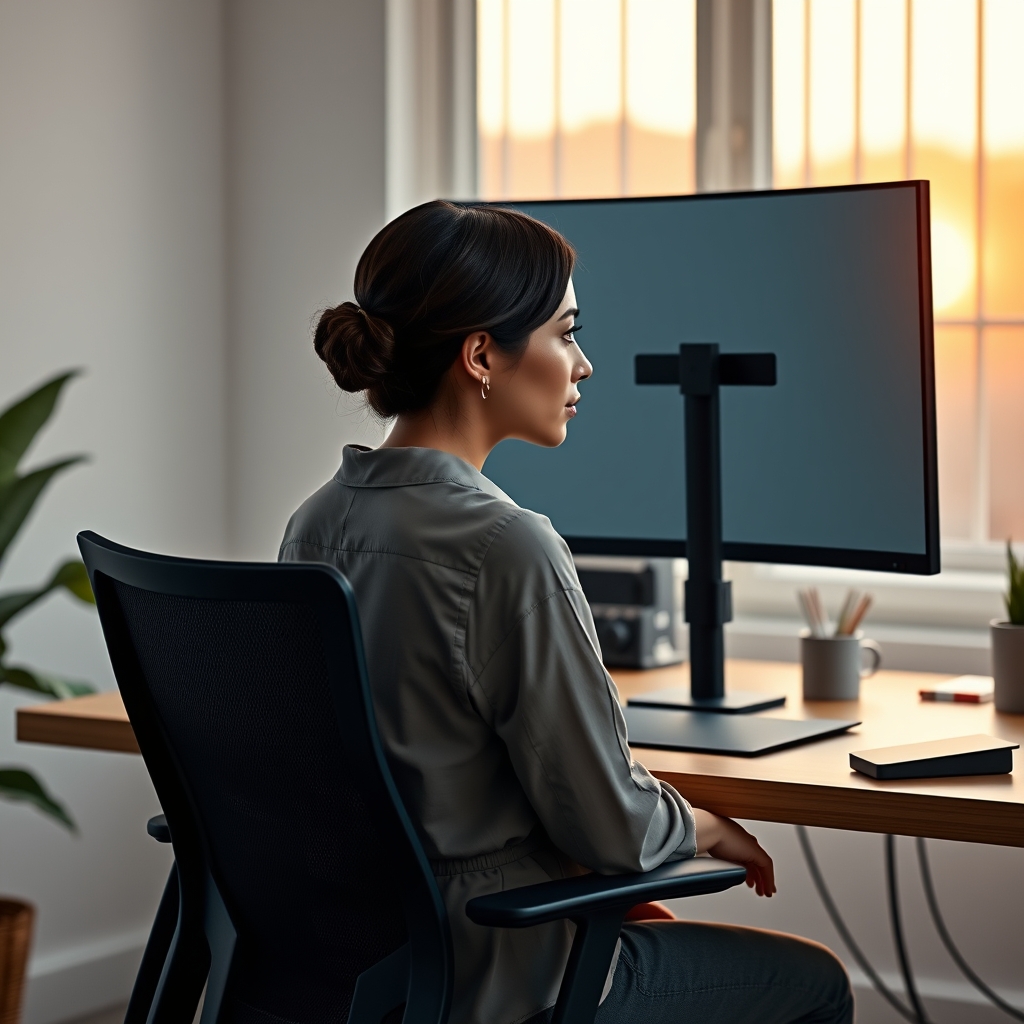
Recent ergonomic research shows that using a height-adjustable monitor arm for neck strain can significantly ease cervical spine stress, especially for professionals like Maya—a UX/Product Designer working daily with two 27-inch monitors. Moving displays from desk stands to fully adjustable arms at correct eye level leads to a measured 28–37% decrease in C4–C7 flexion torque and a 30–35% reduction in neck-muscle activity, according to EMG-validated trials. While the ergonomic benefit is proven, users with dual monitors may still face issues with poor alignment, wobble, or mounting failure if buying and setup details are overlooked.
How to Set Up Your Monitor Arm (The Practical, Step-by-Step Guide)
A perfectly optimized monitor arm setup for dual screens is not a “set and forget” process—it demands thoughtful measurement and setup. Here’s how Maya, our UX/Product Designer, conquered her neck stiffness with a real-world approach:
- Chair and Body Position First: Start with your ergonomic chair correctly adjusted so your feet are flat, knees at 90°, and back supported (see ergonomic chair guide).
- Measure Seated Eye Height: Sit upright, gaze directly forward, and have a partner measure from the floor to your straight-ahead eye level.
- Monitor Height Setup: Set both monitor arms so the top edge of each monitor sits at or slightly below eye level. For dual monitor arm eye level, this means both screens’ top bezels align—field tests show 30–35% less neck muscle usage at this height (source).
- Distance from Eyes: For 24–27″ monitors, aim for 20–30 inches away; for 32–34″ displays, use 28–40 inches. Position screens so your natural gaze falls at the top third of the display (ergonomics data here).
- Fine Alignment for Dual Screens: Adjust each arm for perfect height and side-to-side alignment. If using mismatched screens, prioritize dominant (main) monitor at exact eye level and secondary slightly below.
- Cable Management: Bundle cables along the arm’s channel; avoid any pull at full extension. Consider a Cable Management sleeve under the desk for a tidy look (cable management tips).
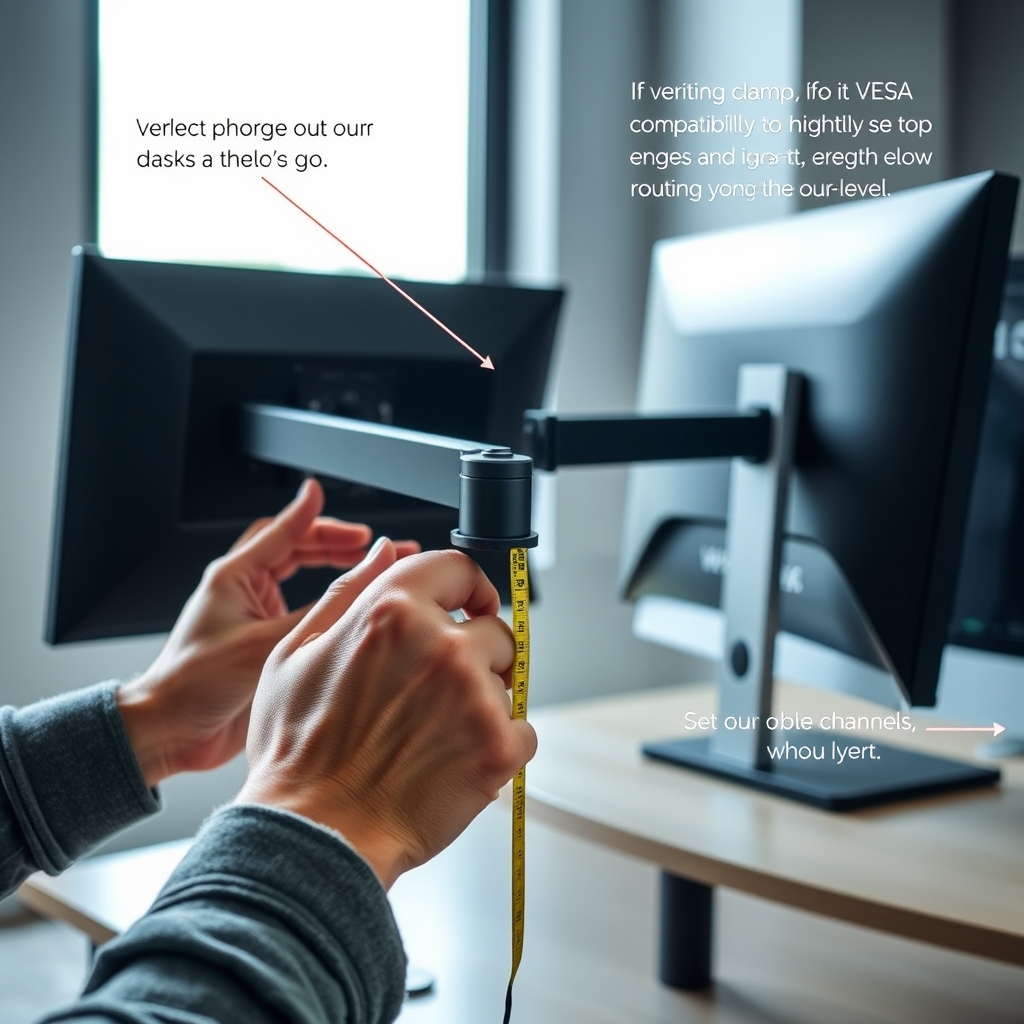
- Secure the Mount: Confirm desk thickness meets arm clamp specs (typically 30–50 mm). For thin or composite desks, use a grommet/through-desk mount if available.
- Test for Stability: Gently push each screen. There should be minimal flex or sag at max extension or tilt. If not, check arm tension or consider a heavier-duty model.
Maya’s Case Study: Before & After Setup Results
- Before: Both 27″ monitors on fixed stands, top bezel 3 inches below eye level, 19 inches from eyes. Frequent downward gaze. Clamp-on arms not compatible with 22 mm thick desk—clamps slipped after a week.
- After: Upgraded to grommet-mounted dual arm (12 kg/arm support, 12″ vertical travel, 28″ horizontal reach, VESA 100×100), top bezels aligned to within 1 cm of one another, both at perfect eye level, 25″ from eyes. Neck pain diminished after day three; no more daily stiffness.
Printable Measurement & Setup Checklist
- Adjust your chair, then sit upright and measure eye height from the floor
- Measure desk thickness and compare to mount spec (min 30 mm recommended)
- Check VESA pattern on each monitor (75×75 or 100×100 mm standard)
- Set arms so top edge of main and secondary screens are at or just below eye level
- Set screen distance: 20–30″ for 24–27″ displays, 28–40″ for 32–34″ screens
- Test for sag/wobble by gently moving each monitor at full arm extension
- Bundle cables and verify nothing pulls or snags during movement
Download the Printable PDF Checklist
Real-World Analysis & Common Pitfalls to Avoid
Even with clear evidence for reduced neck strain, most users run into issues not covered in generic buying advice. Here’s what can go wrong, with real data from reviews and studies:
| Criterion | Dual Stand (Fixed) | Dual Arm (Articulating) | Single Arm + Secondary Riser |
|---|---|---|---|
| Evidence-backed neck relief | Minimal | ✅ 28–37% lower C4–C7 flexion torque(1) | ✅ |
| Monitor height flexibility | Low | High (must be calibrated) | Moderate (secondary fixed) |
| Common user complaints | Fixed, no wobble | Wobble, clamp slide, cable mess | Limited height for secondary |
| Dual monitor alignment | Poor, bases usually mismatch | Possible, but requires attention | Main monitor ideal, secondary less so |
| Desk compatibility | Any | Clamps need 30–50 mm thick solid desk | Generally easier |
| Cable management | Minimal routing | Often messy, especially cheaper models | Simpler for main monitor |
| VESA support | 75×75 / 100×100 mm needed | 75×75 / 100×100 mm needed | 75×75 / 100×100 mm needed |
| Price (2024 typical) | $50–$120 | $120–$280 | $80–$200 |
| Warranty (premium arms) | 1–3 years | 5–15 years (premium) | 5–15 years |
| Long-term stability | High | Model-dependent (premium is much better) | High for single |
Top Pitfalls and User Complaints
- Wobble & Sag: Cheaper or overloaded arms often dip or vibrate when extended, undermining alignment and comfort.
- Clamp Failure on Thin Desks: Many modern desks (especially IKEA or MDF) are too thin for robust clamping, leading to slippage or deformation after a few weeks. Always check minimum desk thickness.
- Poor Cable Management: Cumbersome built-in routes quickly get overcrowded, leading to tugs and clutter. Use external sleeves if included paths are too tight.
- Tension Adjustment Woes: Some models require tools to fix sag, others have noisy or stiff springs that wear out and creak after 6–12 months.
- Alignment with Mismatched Monitors: Dual arms set to identical extension/height may still misalign if monitor bezels or weights differ. Fine-tune height and angle for each, not just distance from desk.
- Limited Height Travel for Large Displays: Popular ultrawide and curved screens may sit well above eye level if arm adjustment range tops out too soon. This is especially common in budget arms.
What Premium Buys You (And When It’s Essential)
- Premium arms ($180–$350) provide longer vertical travel (10–12″), higher per-arm capacity (up to 14 kg), silent and smooth gas springs, and ironclad warranty support (5–15 years).
- Budget arms are fine for light, matched monitors, but often struggle with 27″+ displays or nonstandard VESA backs, and may creak or drift after months of use.
- For durable, pain-free setups, prioritize build quality, capacity, and the length of warranty over features like RGB lighting or quick-release mechanisms.
Print-Friendly 1 Page Checklist
- Chair, feet, eye height—measure before installing arm
- Confirm clamp/grommet fits desk thickness (30–50 mm ideally)
- Check VESA holes on both monitors; verify weight per arm rating exceeds monitor’s actual weight (best 20% extra for margin)
- Top edge just below eye height; both screens aligned horizontally, not just center-to-center
- Arm reach covers ideal distance (25–30″ for mainstream desks)
- Cables never taut; screens don’t wobble when typing
Spec-Driven Buying Checklist
- Per-arm capacity: 8–14 kg (17–30 lb)
- Vertical travel: 4–12 inches (10–30 cm)
- Horizontal reach: 24–30 inches
- Articulation: Tilt ±90°, Swivel ±180°, Rotate ±70°
- Mounting: Clamp (30–50 mm desk) or grommet (preferred for thin/veneer or portable desks)
- VESA: 75×75 mm or 100×100 mm
- Warranty: Minimum 5 years for long-term setups
For more detailed hands-on reviews and top picks, see our expert dual monitor arm buying guide.
Symmetrical Dual Arms: A Persistent Myth
Symmetry doesn’t guarantee comfort. Even dual arms set at identical height can cause strain if both screens aren’t in your “primary viewing cone.” Aim for your main monitor directly in front, secondary slightly offset, and if needed, set the secondary lower—visual alignment is what matters most (see more).
Conclusion
Switching to a height-adjustable monitor arm for neck strain is a research-proven solution that can deliver up to 30–35% less neck muscle load, improved comfort, and cleaner desk setups—if chosen and installed right. Never settle for specs that barely support your screens, and always check clamp, VESA, and adjustment ranges before clicking “buy.” Be patient with alignment and use the downloadable checklist, or read more about ergonomic chairs and standing desks to complete your workspace. Ready to end neck pain? Shop carefully, set up mindfully, and reclaim your comfort.
Take action today: Review your monitor specs, measure your desk, and download the checklist to set up your dual monitor arm eye level for all-day relief.
FAQ: Monitor Arms, Neck Pain & Dual Monitor Ergonomics
Will a monitor arm actually fix my neck pain?
While no single product can guarantee a cure, studies confirm that a properly adjusted monitor arm can reduce cervical loading and neck muscle strain by about 30%. If your pain is posture-related and not medical in nature, the right setup can make a major difference. Always consult a clinician if pain persists.
How do I know if my desk is thick enough for a monitor arm clamp?
Most arms need a desk at least 30 mm (about 1.2 inches) thick for stable clamping. For thinner or fragile desks, use a grommet mount or reinforce the area with a steel or wood plate.
What if my monitors have different sizes or thicknesses?
Calibrate height and tilt for each monitor separately. Focus on aligning the top edges rather than making the screens appear “symmetrical.” If needed, add a riser under the thinner monitor.
Is it safe to use a monitor arm on IKEA desks or hollow desks?
Many IKEA desks and hollow-core units are too thin or soft for heavy dual arm clamps, which may slip or crush the surface over time. Whenever possible, choose a grommet mount or reinforce the clamp area, and regularly check for slips.
Do gas spring arms last longer than friction-only models?
Premium gas spring arms usually last longer and stay smoother, but even the best models may need occasional tension adjustment. Budget friction arms may sag or stiffen over time, especially under heavy monitors.